How to Choose the Right Photocopier for Your Office
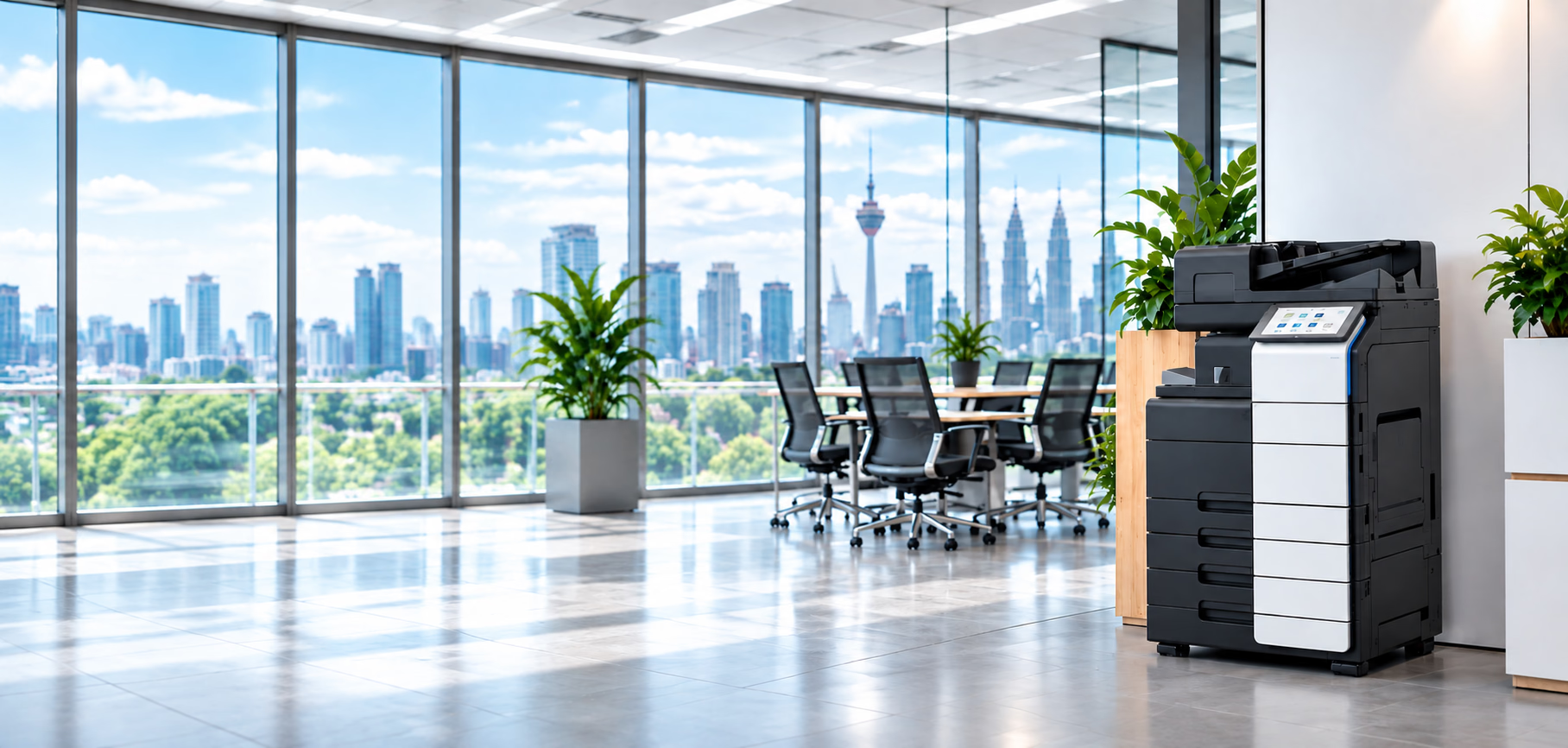
The right photocopier should fit your office’s daily work.
Start with the documents your team produces, how much you print and the functions you use. Then compare machines and quotations that meet those needs.
You do not need to choose the fastest or most expensive machine. You need one that can handle your workload with suitable support.
What Should You Check Before Choosing a Copier?
Check your monthly print volume, colour requirements, paper sizes, busy periods and scanning needs. Then confirm office space, computer compatibility, service arrangements and the full cost.
Share these details with the supplier before choosing a model to ensure the recommendation fits your actual workload.
1. Estimate How Much Your Office Prints
Review recent printing bills or machine meter readings. Looking at several months can help you spot busy periods.
- • Black-and-white printing.
- • Colour printing.
- • Regular daily work.
- • Large occasional jobs.
If you are opening a new office, explain your expected work rather than guessing an exact figure.
Ask the supplier whether the proposed machine suits your normal usage and your busiest periods. Do not choose only from its advertised maximum printing capacity.
2. Decide Whether You Need Colour
Black-and-white printing may suit routine letters, forms, invoices and internal documents.
Colour may be useful for presentations, charts, proposals and customer-facing materials.
- • How often do we need colour?
- • Which documents genuinely need it?
- • Can black-and-white be the default setting?
- • Can colour access be controlled if required?
Confirm both printing rates and any supported usage controls. Do not assume all machines include the same controls. You can compare category options on our Colour Copiers and B&W Copiers guides.
3. Check the Paper Sizes You Use
If your office mainly prints standard documents, A4 may cover most of your needs.
If you regularly print larger spreadsheets, drawings or posters, ask about A3 support.
- • Envelopes.
- • Labels.
- • Thicker paper or cardstock.
- • Different paper sizes loaded at the same time.
Ask the supplier to verify supported paper sizes, weights and tray arrangements for the exact model and configuration. Do not assume an A3 copier can handle every type of paper.
4. Think About Busy Periods, Not Just Speed
Pages per minute, often shortened to ppm, describes a machine’s printing speed under specified conditions.
Your team’s experience also depends on the documents being processed, job queues and how the machine is used.
- • Do several people print at once?
- • Do you regularly print large document sets?
- • Are there deadlines when everyone needs the copier?
- • Do staff spend time waiting for jobs to finish?
Ask for a recommendation based on these patterns. A faster machine is not automatically the best fit for every office. For intensive departmental workloads, review our High-Volume Copiers.
5. Check How Your Team Scans Documents
A copier may also serve as a shared scanner.
- • Scan several pages in one batch (Automatic Document Feeder / ADF).
- • Scan both sides of a document in a single pass (Dual Scan).
- • Send scans directly to email or a shared office network folder.
- • Create searchable PDF files.
- • Connect to an existing digital document workflow.
Searchable PDFs let you search for words inside a scanned document. This may require OCR software (Optical Character Recognition), which recognises printed text on the page.
Confirm what the proposed machine supports and whether software, licences or additional setup are required. Do not assume every copier includes these functions as standard.
6. Confirm Computer and Network Compatibility
Tell the supplier what your office uses:
- •Windows or Mac computers across different departments.
- •Wired Ethernet or wireless Wi-Fi office networking.
- •Shared office printers and network print queues.
- •Mobile printing from smartphones or tablets, if needed.
- •Any access or security requirements set by your IT team.
Wireless and mobile printing may depend on the specific machine model, accessories, software and network setup.
Ask who will handle installation and whether setup for all required computers is included. You can check official manufacturer setup portals on our Printer Driver Downloads page.
For sensitive documents, discuss features such as secure print, where a user releases a job at the machine using a PIN code. Confirm availability rather than assuming it is standard.
7. Check Space and Delivery Access
Measure the proposed installation area before confirming a machine.
Allow for opening paper trays, side bypass doors, daily use and technician servicing. Ask the supplier for the required physical clearance for the exact model.
- • Floor level and lift availability vs staircase access.
- • Doorway and corridor width restrictions.
- • Loading bay arrangements and building management rules.
- • Available wall power outlets and network ports nearby.
Do not rely only on a product photograph to judge a copier's physical dimensions.
8. Choose Only the Extras You Need
Some offices need automatic stapling, hole punching or booklet-making. Others mainly print loose sheets.
List the tasks your team performs regularly. Ask whether each function requires an optional external finisher or internal module.
Confirm the total price, additional floor space requirements and consumable costs (such as staple cartridges) before adding extra equipment.
9. Compare Support and the Full Cost
A suitable machine also needs a suitable service arrangement.
Ask what the quotation covers:
- • Rental or purchase cost.
- • Black-and-white and colour charges.
- • Included allowances or minimum commitments.
- • Toner, parts and maintenance.
- • Installation and training.
- • Service procedures and exclusions.
Do not assume a low rental fee means a lower overall bill. You can read our detailed breakdown on Copier Rental Costs Explained.
Ask how to report a fault and what support arrangements apply. Do not assume every package has the same response time.
Match the Copier to Your Work
The table below outlines common workplace requirements and key points to raise with your supplier:
| Office Need | What to Discuss with the Supplier |
|---|---|
| Mostly routine documents | Black-and-white needs, normal usage and running costs |
| Frequent presentations and proposals | Colour requirements, print quality and colour charges |
| Large spreadsheets or drawings | A3 support and suitable paper handling |
| Regular document scanning | Batch scanning, double-sided scanning and destination setup |
| Several users with busy deadlines | Job queues, suitable speed and recommended workload |
| Confidential documents | Available secure-print and access-control features |
| Temporary project or event | Short-term availability, dates, setup and collection |
(Note: General guidance only. Suitability should be confirmed for your specific documents and software.)
What to Tell Your Copier Supplier
When requesting a proposal, prepare these 9 details for a clear quotation:
- Office location.
- Estimated monthly black-and-white and colour usage.
- Required paper sizes (A4, A3, letter or special paper).
- Number of users and busy periods.
- Printing, copying and scanning requirements.
- Computer and network setup (Windows, Mac, Wi-Fi or Ethernet).
- Available space and delivery access (floors, lift access).
- Preferred rental or purchase arrangement.
- Budget and any required accessories (stapling, extra paper trays).
MYCOPIERS serves businesses in Kuala Lumpur, Selangor and Putrajaya. Sharing these details helps our team recommend suitable options and explain the quotation. If you are deciding on agreement types, consult our guide on Rent or Buy a Photocopier.
Choose for the Work You Actually Do
Start with your documents and workflow, then compare equipment.
Confirm the exact model, installed accessories, service scope and charges before making a decision. This helps you avoid paying for features you do not need or choosing a machine that cannot meet your requirements.
Common Questions on Choosing an Office Copier
How do I know which copier size or capacity I need?
Do I need a colour copier?
Is a faster copier always better?
Should I choose A3 or A4?
Can every copier scan to email or a shared folder?
Can I print from my phone?
Should I rent or buy?
Find a Copier That Fits Your Office
Tell us what your team prints and scans. We can help you compare suitable machines and rental options.